If you own a Samsung or LG Smart TV, Smart IPTV is one of the easiest ways to enjoy your IPTV subscription — no Firestick, no extra box, just an app on the TV you already own. Also known as SIPTV, it has been the go-to player for native Smart TVs for years, and it pairs perfectly with a service like KILMURRY.IE. This 2026 guide explains exactly what Smart IPTV is, how to install it on Samsung and LG, how to upload your playlist, what the free trial and one-time fee involve, and how to fix the most common problems.
Key takeaways
- Smart IPTV (SIPTV) is a player app for Samsung, LG, Android TV and Fire TV — it does not provide channels itself.
- You add your own IPTV subscription as an M3U playlist via the official siptv.app portal.
- The app offers a free 7-day trial, then a one-time fee of around €5.49 for lifetime use on that TV.
- Setup uses your TV’s MAC address — no typing long links on the TV itself.
- You need a reliable IPTV subscription and a stable broadband connection.
What Is Smart IPTV (SIPTV)?
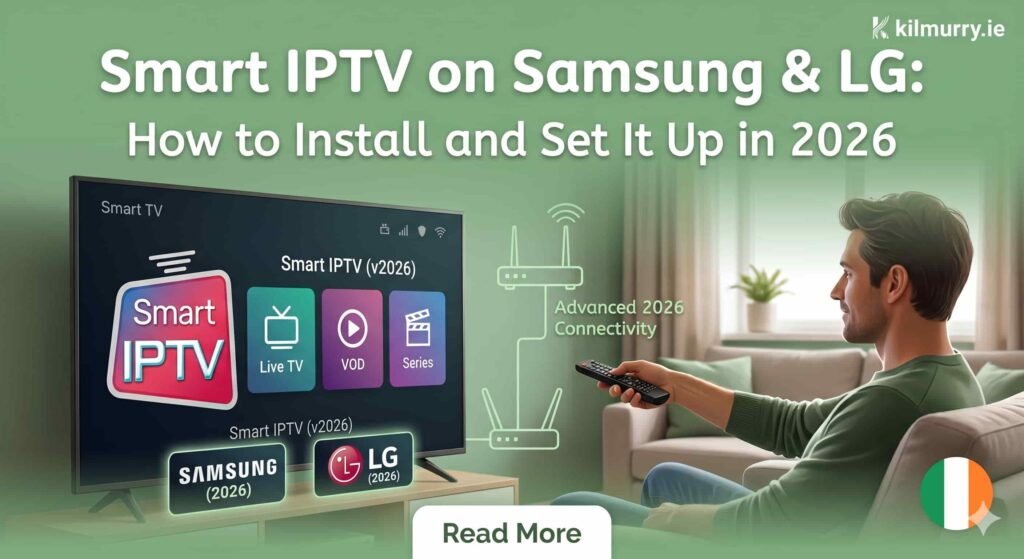
Smart IPTV is a media player application built for Smart TVs — primarily Samsung (Tizen) and LG (webOS), but it also runs on Android TV and Amazon Fire TV. It is important to understand one thing from the start: The app does not supply any channels or content of its own. Instead, it acts as the « shell » or player that organises and displays the content from a subscription you already hold.
In practice, that means you load an M3U playlist — the standard IPTV file that contains your channel links — and the app turns your TV into a full streaming hub with live channels, an Electronic Programme Guide (EPG), favourites and video-on-demand. The app is known for being clean, fast and reliable, which is why it remains the most popular native option for Samsung and LG owners.
Is Smart IPTV Free? The Trial and Activation Fee
This is the question everyone asks. The app gives you a free 7-day trial that begins automatically the first time you open the app, with no limitations. After the week is up, the app asks for a one-time activation fee of around €5.49 to keep using it on that television.
Two points are worth stressing. First, this fee is for the app itself and is completely separate from your IPTV subscription — it goes to the app’s developers, not your provider. Second, it is a single lifetime payment tied to your TV’s MAC address, so you pay once and use the app for the life of that TV. If you later switch to a different television, you simply activate again on the new device.
What You Need Before You Start
Getting going with Smart IPTV takes only a few minutes if you have everything ready:
- A Samsung, LG, Android or Fire TV.
- An active IPTV subscription with an M3U playlist URL — you can get one from our subscription plans.
- A phone, tablet or computer to upload your playlist.
- A stable broadband connection — it is worth a quick speed test first, aiming for 15 Mbps for HD and 25 Mbps or more for 4K.
That is all it takes — there is no dish, no cabling and no engineer required.
How to Install Smart IPTV on Samsung & LG
The download step is straightforward on both major brands.
On a Samsung TV, press the Smart Hub (home) button, open the Apps store, search for « Smart IPTV » and install it. On an LG TV, open the LG Content Store, search for « Smart IPTV » and install it the same way. Once installed, open the app and make a note of the MAC address shown on the main screen — it looks like AA:BB:CC:DD:EE:FF and you will need it in the next step.
One heads-up: It has been removed from the Samsung App Store in certain regions. If you cannot find it on your TV, do not worry — excellent alternatives such as IBO Player, Flix IPTV and IPTV Smarters Pro work in exactly the same way, and our team can point you to the best one for your model.
How to Add Your Playlist (Step by Step)
Here is the clever part: you do not type anything awkward on the TV. Instead, on your phone or computer, open a web browser and go to siptv.app/mylist (also reachable at siptv.eu/mylist). Enter your TV’s MAC address, paste the M3U playlist URL from your provider, add an EPG URL if you were given a separate one, and click Send.
Then go back to your TV, close and reopen the app, and your full channel line-up will load automatically, complete with the programme guide. From that moment on, your Samsung or LG TV is a complete IPTV streaming hub. If you ever need to refresh your channels, just re-send the playlist from the same page.
Smart IPTV vs Other Apps (Smarters, TiviMate, IBO)
Smart IPTV is the most reliable native choice for Samsung and LG, with a particularly strong EPG. That said, the best app depends on your device. On Android TV and Fire TV, many people prefer TiviMate for its polished interface and premium extras like recordings. IPTV Smarters Pro and IBO Player are simple, dependable alternatives that work across almost every device. All of them load the same kind of M3U or Xtream Codes playlist, so whichever you choose, your subscription works the same way. If you are setting up a Firestick instead, our IPTV Ireland guide covers that route too.
Smart IPTV Not Working? Common Fixes
Most issues have quick solutions:
- The app is not in your TV’s store — it has been pulled from some regions; sideload it or use an alternative such as IBO Player or IPTV Smarters Pro.
- Channels will not load — re-send your playlist from siptv.app/mylist, then restart the app. Check that your subscription is active and the M3U URL is correct.
- Buffering during live TV — this is almost always your connection. Use a wired Ethernet link where possible, or move your router closer, and confirm your speed.
- MAC address rejected — make sure you entered the exact MAC shown in the app on that specific TV.
- Trial expired — pay the one-time activation fee to continue; if you want your playlists kept, activate before the 7 days are up.
Tips for the Best Streaming Experience
A little setup goes a long way. Use a wired connection on your main TV for the steadiest picture, keep your M3U URL somewhere safe, and add your EPG so the guide and catch-up work properly. Restarting the app every so often keeps it running smoothly, and if you are still on the trial, remember to activate before it ends so your saved playlists carry over. For a wider look at choosing a service, see our guide to the best IPTV service.
Smart IPTV FAQ
Is Smart IPTV free? There is a free 7-day trial that starts automatically. After that, a one-time fee of around €5.49 unlocks the app for the lifetime of that TV. There are no recurring charges for the app itself.
Which devices are supported? It works on Samsung (Tizen) and LG (webOS) Smart TVs, plus Android TV, Google TV and Amazon Fire TV. Each device needs its own one-time activation.
Do I need a subscription? Yes. Smart IPTV is only a player — it does not include any channels. You need an IPTV subscription that provides an M3U or Xtream Codes playlist, such as one of our subscription plans.
Why can’t I find Smart IPTV in my Samsung store? The app has been removed from the Samsung App Store in some regions. If it is missing, IBO Player, Flix IPTV or IPTV Smarters Pro are excellent, near-identical alternatives.
Do I need a VPN? A VPN is not required, though some viewers use one for added privacy. If you do, choose a fast, reputable provider so it does not slow your streams.
Is Smart IPTV legal in Ireland? The Smart IPTV app and your Smart TV are legal to use. Whether the content in a playlist is properly licensed depends on the provider, so choose a transparent, well-supported service and make sure your use complies with local rules.
The Bottom Line
For Samsung and LG owners, Smart IPTV is the simplest way to turn the TV you already own into a full streaming hub — no extra hardware, a one-off app fee and a quick playlist upload, and you are away. Pair it with a reliable subscription and you will have thousands of channels and a tidy programme guide at your fingertips. If you need a service built for Irish viewers, with full GAA and sport, real 4K and friendly support, take a look at our subscription plans or message our team and we will help you get set up.